When you ask for a phone number or an email address, some answers come back as a name, or with a typo that makes your follow-up bounce. Once those responses are in a spreadsheet, the only fix is cleaning them up by hand.
Response validation in Google Forms lets you set a rule an answer must follow before the form can be submitted, so people fix bad answers while they're still filling the form. This guide shows you how to set up validation, what each of the four rule types does, and copy-paste regex patterns for common formats.
Quick answer
- Click a short answer, paragraph, or checkbox question (the only three types that support validation).
- Open the three-dot menu in the bottom-right corner of the question and choose Response validation.
- Pick a rule type: Number, Text, Length, or Regular expression.
- Set the condition and write a custom error message that tells people how to fix their answer.
- Preview the form and test it with wrong answers before you share it.
What is response validation in Google Forms?
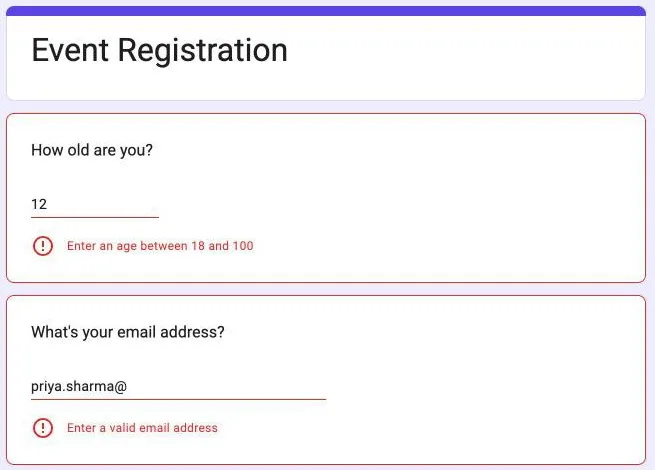
Response validation is a rule you attach to a question. When an answer breaks the rule, Google Forms shows your error message in red under the question and blocks the submission until the answer is fixed. For example, if someone types an email address without an @, the form won't go through until they correct it.
One limit to know before you plan your form: full validation works on only three question types.
- For short answer questions: you can use the full set of rules (number, text, length, and regex).
- For paragraph questions: you can apply length and regex rules only.
- For checkbox questions: you can only limit how many options someone selects.
Grid questions get two narrow settings of their own (require a response in every row, limit to one response per column). Multiple choice and dropdown questions have no validation at all, because their answers are already restricted to the choices you provide.
How to add response validation in Google Forms
The setup takes under a minute per question:
-
Pick a question
Go to forms.google.com and open the form you want to edit. Click the question you want to validate. Check that the question type is short answer, paragraph, or checkboxes, because dropdown and multiple choice questions don't show the validation option.
-
Turn on response validation
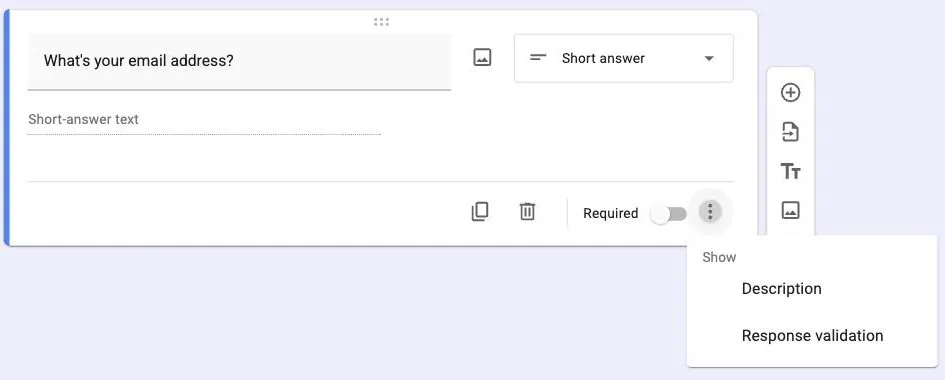
Click the three-dot menu in the bottom-right corner of the question card, then choose Response validation. A new row of dropdowns appears under the answer field.
-
Choose the rule
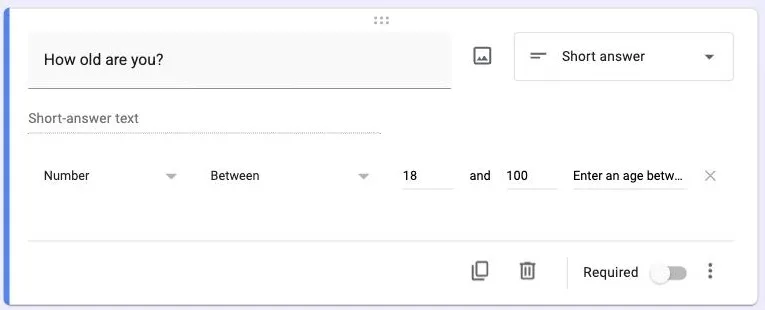
The first dropdown sets the rule category: Number, Text, Length, or Regular expression. The second dropdown sets the condition, like between, contains, or maximum character count. The field after it takes your value. For an age question, that's Number, then Between, then 18 and 100.
-
Write a custom error message
The last field holds the text people see when their answer fails. Google's default error is vague, so say exactly what to do: enter a number between 18 and 100, or enter your work email address. A clear error message helps people fix their answer instead of abandoning the form.
-
Preview and test the form
Click the eye icon at the top to open the preview. Submit a wrong answer on purpose and confirm the error appears, then submit a correct one and confirm it goes through. Test the edge cases too: spaces before an email address, a number written with a comma, an empty field. Testing now means you catch a broken rule before your respondents do.
Validation and the Required toggle work independently. A validated question that isn't required can simply be left blank, and the rule never runs. Mark the question required if the answer must be present and correct.
The 4 types of response validation (with examples)
Each validation type works with a different kind of answer. Choose the one that fits the question you're asking.
Number validation
Number validation keeps answers numeric and inside a range you choose. The conditions are greater than, greater than or equal to, less than, less than or equal to, equal to, not equal to, between, not between, is number, and whole number.
Use it when you're asking for a quantity, such as age, ticket count, hours worked, or a number-based rating. For example, if you're asking how many tickets someone needs, set the rule to between 1 and 10, and nobody can enter 1,000 by accident. Add the whole number condition too, or someone can RSVP for 2.5 people.
Text validation for email and URL
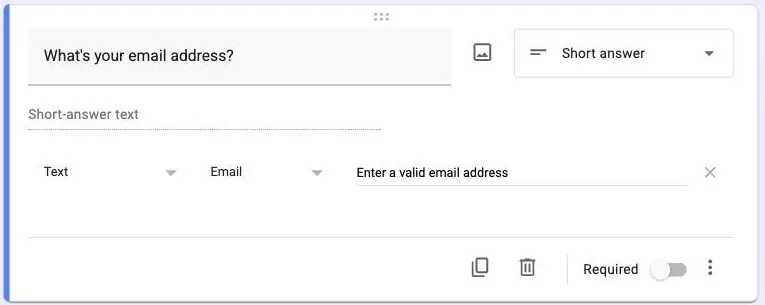
Text validation checks the format or content of an answer. You can check whether the answer contains specific text, doesn't contain specific text, or follows an email or URL format.
The email condition matters when you collect emails for follow-up. Select Text and then Email address, and Google Forms rejects entries that don't follow the name@domain shape, like an address missing the @ or ending in .con.
The URL condition works the same way for links. Use it when you ask for a portfolio, LinkedIn profile, or company website.
The contains and doesn't contain conditions handle formats specific to your business. For example, if every employee ID starts with ACM, a contains rule for ACM catches anyone who typed only the digits.
Length validation
Length validation sets a minimum or maximum character count. It works on both short answer and paragraph questions.
Use a minimum when you need more than a one-word answer, like requiring at least 50 characters for a feedback question. Use a maximum when the answer has a fixed limit, like a display name that must fit in 20 characters.
You don't need a minimum on every open question, though. If people add extra words just to meet the limit, you get longer answers without better feedback.
Regular expression validation
Regular expression, or regex, validation checks an answer against a pattern you define. The conditions are contains, doesn't contain, matches, and doesn't match. Use it when the built-in options can't describe your format: phone numbers, PIN codes, dates, order IDs.
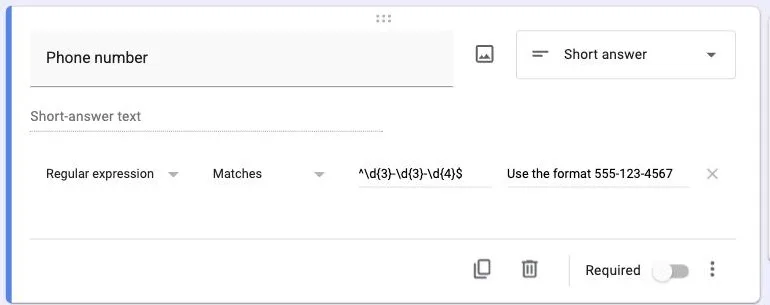
For example, the phone pattern ^\d{3}-\d{3}-\d{4}$ checks for three digits, a dash, three more digits, another dash, and four final digits. So 555-123-4567 passes and 5551234567 doesn't. You don't need to learn regex to use it; copy a pattern from the table below.
Copy-paste regex patterns for Google Forms
For each of these, set the validation to Regular expression and the condition to Matches, unless the row says otherwise. Paste the pattern as-is.
| What you want | Pattern | Passes |
|---|---|---|
| US phone (dashes) | ^\d{3}-\d{3}-\d{4}$ | 555-123-4567 |
| 10-digit phone, digits only | ^\d{10}$ | 5551234567 |
| Indian mobile number | ^[6-9]\d{9}$ | 9812345678 |
| US ZIP code | ^\d{5}(-\d{4})?$ | 12345 or 12345-6789 |
| Indian PIN code | ^[1-9]\d{5}$ | 560001 |
| Date as MM/DD/YYYY | ^(0[1-9]|1[0-2])/(0[1-9]|[12]\d|3[01])/\d{4}$ | 03/28/2026 |
| Letters and spaces only (names) | ^[A-Za-z ]+$ | Priya Sharma |
| Block links in answers | https?://|www\. with condition Doesn't contain | any answer without a link |
Adjust the pieces to fit your format: change \d{3} to \d{4} for four digits, or swap the dash for a space. Google Forms uses RE2 regex syntax, which has no lookahead support, so very clever patterns from Stack Overflow may not work. The patterns above all do.
The blocked-links row solves a specific problem: spam bots paste URLs into open text fields. A doesn't-contain rule on your paragraph questions filters most of them without bothering real respondents. (Use doesn't contain, not doesn't match: the matches conditions test the whole answer against the pattern, so a spam message with extra words around the link would slip through.)
Limit how many checkboxes people can select
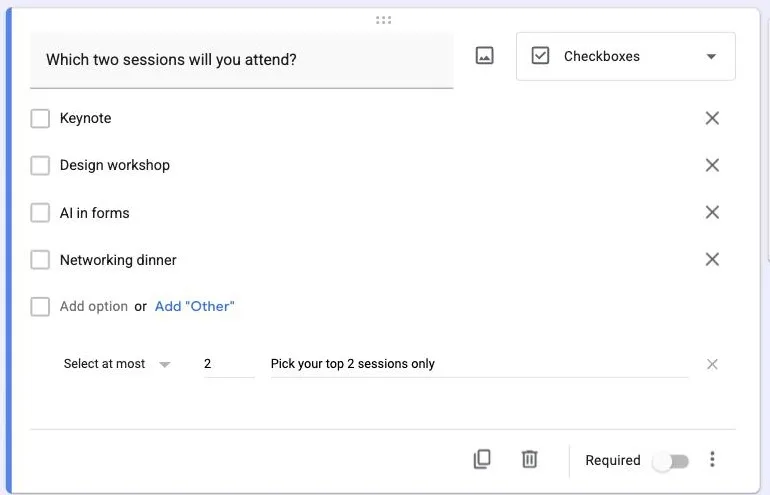
Checkbox questions get their own validation. The conditions are Select at least, Select at most, and Select exactly, each with a number.
Use it when you ask people to pick their top 3 and don't want more than three answers. Open the three-dot menu on a checkbox question, choose Response validation, pick the condition, and set the count. The error message field works the same as everywhere else.
What response validation can't do
Validation catches formatting problems, but there are checks it can't do:
One rule per question. You can't require both a minimum length and an email format on the same field. Combine the conditions into one regex, or split the question in two.
The email check is format-only. name@gmial.com passes, because it looks like an email. A fake address someone invented on the spot passes too. Format validation tells you the answer is shaped right, not that the inbox exists.
No cross-field rules. A rule can't compare two answers, so you can't require an end date later than a start date, or a shipping address only when a checkbox is ticked.
These gaps rarely matter for a simple survey. They matter when the contact details are the point, like lead capture and event registrations. If you want more workarounds for the platform's edges, our collection of Google Forms tips and tricks covers the rest of the toolset.
Validation on every field, and verification where it counts
In Formester, every field type carries its own validation. Phone, email, number, date, and file upload fields each have their own rules, and the checks Google Forms can't do are handled with verification:
Email verification that confirms the inbox. The email verification field sends a one-time code to the address the respondent entered. They type the code into the form, which proves the inbox exists and belongs to them, so typos and throwaway addresses never reach your list.
Phone verification over SMS. SMS verification does the same for phone numbers with an OTP, so a lead's number is dialable before it reaches your CRM.
Fields that react to other answers. Conditional logic shows and hides fields based on earlier answers, so a shipping address field can appear only when someone ticks the checkbox asking for delivery.
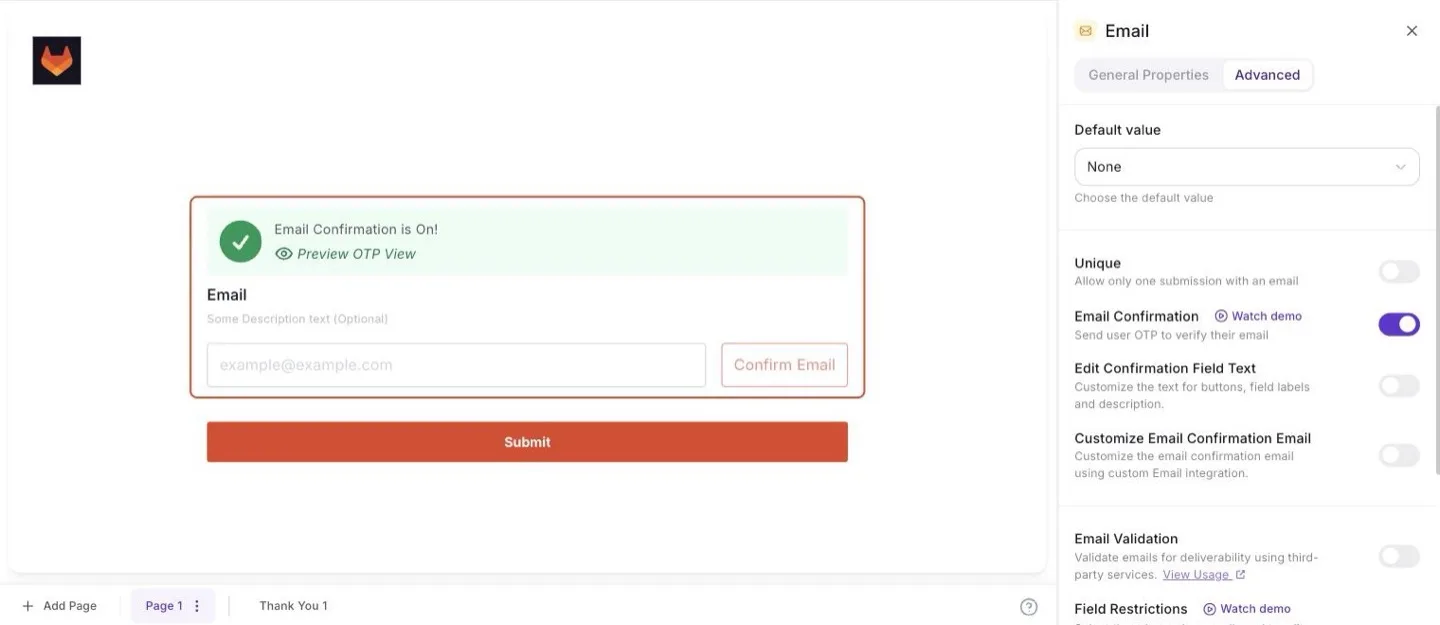
If your forms collect contact details you plan to act on, verification catches the bad entries that format checks let through. For a full comparison, read why Formester is the best Google Forms alternative.
Collect contact details that actually work
Formester verifies emails and phone numbers with one-time codes at submission, so every lead in your list is reachable. Format rules are built into the fields themselves.
Try Formester freeFree forever · No credit card · 56,000+ teams